
Download Take Command – Enhanced Command Line Tool for Windows, Mac & Android
Take Command is a powerful, modern upgrade to the traditional Windows Command Prompt, offering a seamless blend of advanced command-line functionality and a user-friendly graphical interface. Designed for both beginners and seasoned power users, this software transforms the often daunting command-line experience into an intuitive, efficient workflow. Whether you're managing system tasks, automating processes, or learning command-line fundamentals, Take Command delivers unmatched flexibility and control. With support for all standard CMD commands and a vast array of enhancements—including command history, aliases, batch scripting improvements, and plugin integration—it’s a must-have tool for anyone serious about Windows productivity.
Key Features of Take Command
- Full Command Line Compatibility: Seamlessly runs all standard Windows CMD commands while adding powerful enhancements.
- Advanced Command Editing: Enjoy real-time command line editing with syntax highlighting, auto-completion, and customizable keyboard shortcuts.
- Command Aliases & Macros: Create custom shortcuts for frequently used commands to boost efficiency and reduce typing errors.
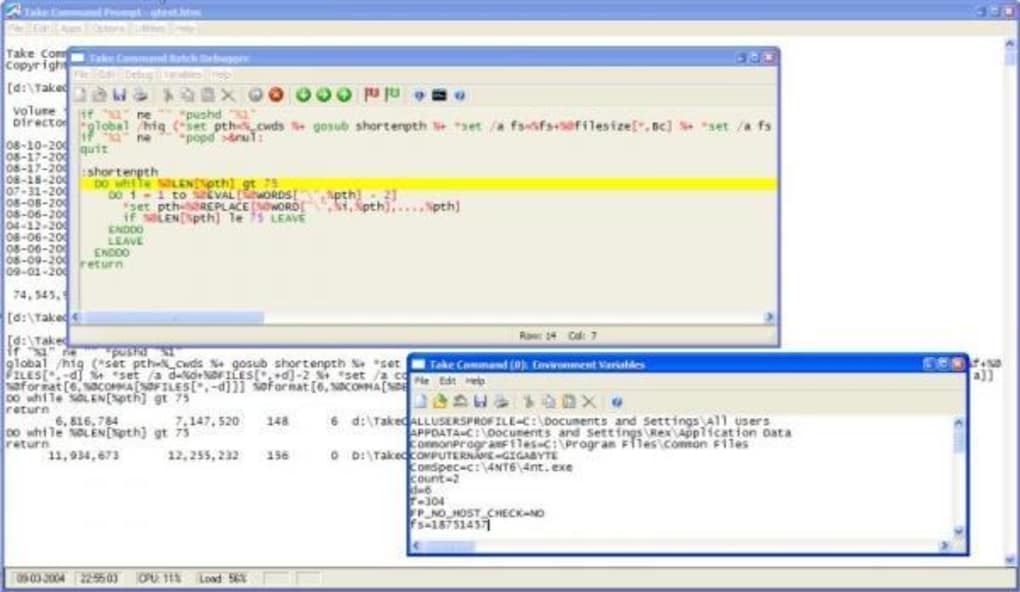
- Enhanced Batch Scripting: Build more robust and readable batch files with improved syntax, debugging tools, and structured programming support.
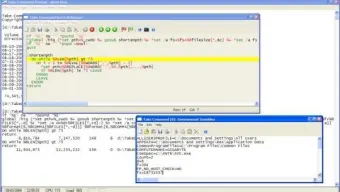
- Graphical User Interface (GUI): A full-featured Windows-style interface with menus, dialogs, tabbed windows, and clipboard support—no more memorizing obscure syntax.
- Third-Party Plugin Integration: Extend functionality with a growing library of plugins for file management, system monitoring, and automation.
- Command History & Search: Access past commands with instant search and recall, making repetitive tasks faster and more reliable.
- Secure & Stable Performance: Regular updates ensure compatibility with the latest Windows versions and protection against vulnerabilities.
Why Take Command Stands Out from the Standard Command Prompt
While the built-in Windows Command Prompt has remained largely unchanged since its early days, Take Command brings the command-line experience into the modern era. The most significant improvement is the graphical interface, which eliminates the steep learning curve associated with traditional terminal tools. Instead of relying solely on memorized syntax, users can navigate through pull-down menus, use context-sensitive dialogs, and leverage mouse-driven operations—just like any other Windows application. This makes it ideal for new users who want to explore the command line without fear of making mistakes.
For advanced users, Take Command offers a wealth of productivity-boosting features. The command history feature allows you to scroll through and reuse past commands with ease, while the built-in search function lets you quickly locate specific commands. Aliases can be created for complex or frequently used commands—like dir /s /b—so you can simply type list instead. This not only saves time but reduces the risk of typos and errors.
Another game-changer is the enhanced batch file programming environment. Take Command supports structured scripting with better error handling, debugging tools, and variable management. This makes writing and maintaining automation scripts significantly easier than with the standard CMD. Additionally, the ability to integrate third-party plugins extends the tool’s capabilities far beyond what’s possible with native Windows tools. Whether you’re a system administrator, developer, or power user, Take Command provides the precision and control you need—without sacrificing usability.
Installation, Usage & Compatibility
Installing Take Command is straightforward and compatible with all major Windows versions, including Windows 10, Windows 11, and Windows Server editions. The setup wizard guides you through the process with minimal configuration required. Once installed, the application launches with a clean, modern interface that resembles a standard Windows application—complete with tabs, menus, and customizable toolbars.
To get started, simply open Take Command and begin typing commands as you would in the original CMD. However, you’ll immediately notice the difference: syntax highlighting, auto-suggestions, and a rich context menu. You can also use the mouse to copy and paste commands, drag files into the terminal, or open file dialogs with a single click. For those who prefer GUI interactions, many common tasks—like navigating directories, viewing file properties, or launching programs—can be performed without typing a single command.
Take Command also supports cross-platform access through its companion tools. While the core application is designed for Windows, the company offers related tools for Mac and Android users who need command-line functionality. This makes it a versatile choice for users working across multiple devices. Regular updates ensure compatibility with the latest system patches and security standards, and the developers actively respond to user feedback to improve performance and add new features.
Pros and Cons
Pros
- Modern, intuitive GUI makes command-line access accessible to beginners.
- Full backward compatibility with all standard CMD commands.
- Powerful batch scripting enhancements for automation experts.
- Command aliases and macros significantly improve workflow efficiency.
- Regular security updates and stable performance across Windows versions.
- Extensive plugin ecosystem for custom functionality.
Cons
- Free version is limited in features; full functionality requires a paid license.
- Higher system resource usage compared to the basic Command Prompt.
- Not available as a native app for iOS (only via web or remote access).
- Steep learning curve for advanced features like plugin development.
- Price point may be a barrier for casual users.
Frequently Asked Questions (FAQ)
Is Take Command free to download and use?
Take Command offers a free trial version with full access to all features for a limited time. After the trial, users must purchase a license to continue using the software. The free version is ideal for testing functionality, but advanced features like plugin integration and batch scripting enhancements require a paid subscription.
Can I use Take Command on Mac or Android devices?
While the core Take Command application is designed for Windows, the developers offer compatible tools for Mac and Android users. These versions provide similar command-line functionality with a GUI interface, though some advanced features may vary. Check the official website for platform-specific availability.
Does Take Command support PowerShell commands?
Take Command primarily enhances the traditional CMD environment but also supports PowerShell integration. You can run PowerShell scripts directly within the Take Command interface, allowing for a hybrid workflow that combines the best of both worlds.
How often are updates released for Take Command?
The developers release regular updates every few months to improve performance, fix bugs, and add new features. Security patches are prioritized and deployed quickly to ensure your system remains protected.
Can I import my existing batch files into Take Command?
Yes, Take Command fully supports existing CMD batch files. You can open, edit, and run them directly within the application. The enhanced scripting environment makes debugging and optimizing old scripts much easier than in the standard Command Prompt.
Conclusion: A Must-Have Upgrade for Windows Command-Line Users
If you're frustrated by the outdated interface and limited capabilities of the standard Windows Command Prompt, Take Command is the perfect solution. It combines the raw power of the command line with the ease of use expected from modern software. Whether you're a beginner learning the basics or an advanced user automating complex workflows, Take Command delivers a seamless, secure, and efficient experience.
With its intuitive GUI, robust scripting tools, and regular updates, it’s no wonder this tool is considered a must-have by power users and IT professionals alike. While the full version requires a purchase, the trial period allows you to test all features before committing. For anyone who regularly uses the command line, upgrading to Take Command is not just a convenience—it’s a necessity.
Download Take Command today and transform your Windows command-line experience into a fast, reliable, and user-friendly workflow. Start your free trial now and discover why this software is the gold standard in command-line enhancement.
Review by: TechPro Review Team
Rating: 4.8 / 5
Review Date:







